
My PC was fine last week. Now it takes fifteen seconds to open File Explorer. Chrome stutters when I switch tabs. The Start menu lags like I’m running Windows on a potato. I didn’t install anything new. I didn’t drop my laptop. I just woke up one morning and Windows 11 felt like it had aged ten years overnight.
If this sounds familiar, you’re not alone — and the reasons are more specific than you might think.
The May 2026 Update: When Patches Break More Than They Fix
Microsoft’s May 2026 Patch Tuesday update, KB5089549, has been a nightmare for a subset of users. The update fails to install on some machines, getting stuck at roughly 35% before rolling back with the vague error message “Something didn’t go as planned. Undoing changes.” But for users where it did install successfully, a smaller group reported something arguably worse: internet performance slowed to a crawl.
The internet slowdown reports are still limited, but they’re consistent enough to watch. Microsoft hasn’t officially acknowledged a networking bug, which means if you’re affected, you’re mostly on your own for now. Some users found relief by reinstalling network drivers or resetting TCP/IP settings, but others saw no improvement until the next cumulative update arrived.
Even if you dodged the May update issues, cumulative updates in 2026 have been unusually rocky. Earlier this year, patches caused boot failures, BitLocker recovery prompts, and sign-in trouble that required emergency out-of-band fixes. Windows servicing has become a high-stakes game where each monthly update behaves like a miniature operating-system migration.
Background Processes Eating Your Resources
Windows updates don’t just install and disappear. After a patch, your PC runs background tasks for hours — sometimes days — including system indexing, driver updates, cache rebuilding, and security scans. On systems with 8GB of RAM or a spinning hard drive, these processes can bring your machine to its knees.
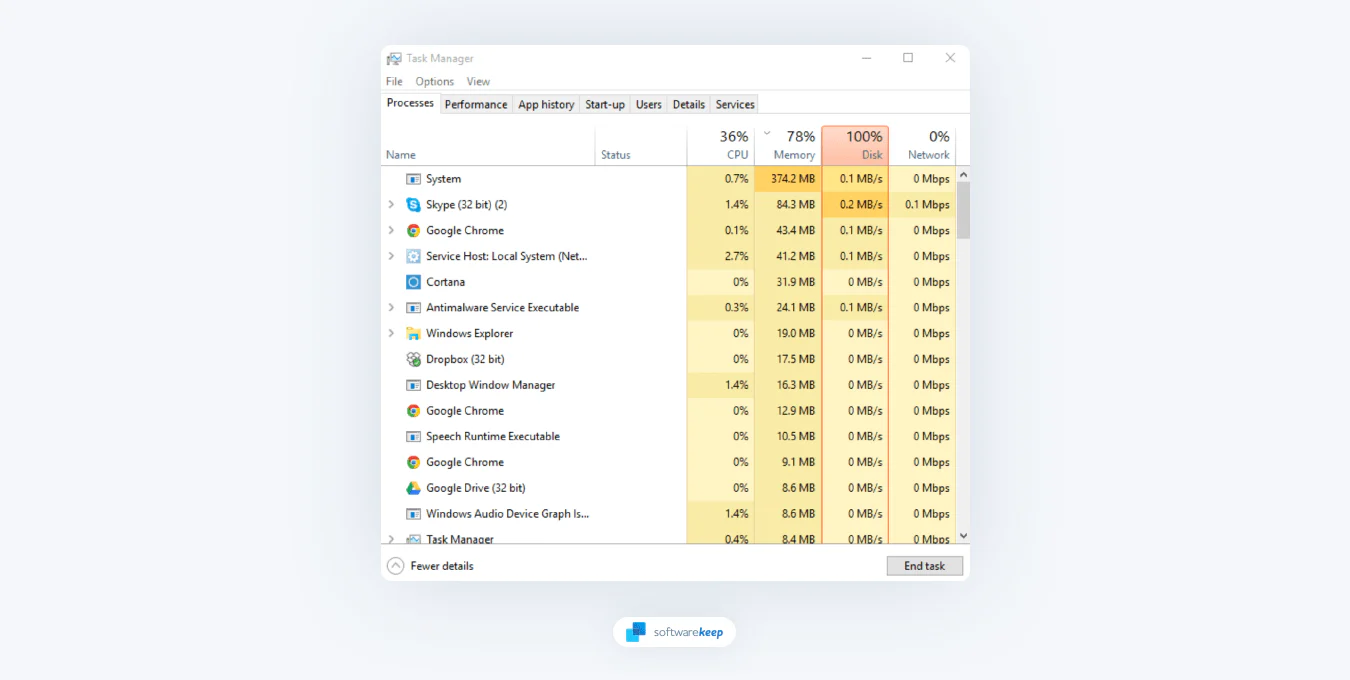
Open Task Manager and check the Performance tab. If your disk usage is pinned at 100% or your RAM is constantly above 80%, that’s your culprit. The worst offender is usually the Windows Search indexer, which rebuilds its database after major updates. On an HDD, this can make your PC feel frozen for hours.
Some updates also re-enable startup apps you’d previously disabled. I’ve seen Windows updates turn Cortana, OneDrive, and Teams back on without asking. Each one adds background processes that chew through RAM and CPU cycles before you even open a browser.
Driver Conflicts After Updates
Windows updates sometimes ship with generic drivers that conflict with your hardware manufacturer’s versions. Graphics drivers, network adapters, and storage controllers are the usual suspects. After the May update, some enterprise users reported NIC driver issues that caused intermittent internet slowdowns even after uninstalling the patch — residual configuration changes that persisted.
If your PC slowed down immediately after an update, check Device Manager for yellow warning triangles. Even without visible errors, rolling back to a previous driver version can sometimes restore performance. For network issues specifically, running netsh int ip reset and netsh winsock reset from an elevated command prompt has helped some users clear lingering stack changes.
The EFI Partition Bug: Updates That Won’t Even Install
Here’s a weird one. The May 2026 update was failing on some PCs because of insufficient space in the EFI System Partition — a tiny hidden partition Windows uses to boot. If your ESP has less than 10MB free, updates simply can’t install and will roll back every time.
Microsoft did release a fix (KB5089573) that addresses the root cause, and future updates will include the patch automatically. But if you’ve been stuck in an update failure loop, that’s likely why. The fix is available now through Windows Update, and the June 9 Patch Tuesday update also includes it.
But Wait — Microsoft Also Fixed Something
It’s not all bad news. Microsoft’s June 2026 update (KB5094126) introduced the Low Latency Profile feature, which temporarily boosts CPU clock speed for 1–3 seconds when launching apps or opening the Start menu. It’s designed specifically to reduce lag and stuttering on older or less powerful PCs.
Think of it like a turbo button for everyday tasks. macOS and Linux have had similar optimizations for years; Windows is finally catching up. If your PC feels sluggish after updates, installing KB5094126 might actually help — especially if you’re on a budget laptop or an older desktop.
What You Can Do Right Now
If your PC slowed down suddenly, start with the basics. Check Task Manager for 100% disk usage or high RAM consumption. Disable any startup apps that got re-enabled. Update your network and graphics drivers from the manufacturer’s website, not just Windows Update. If a specific update caused the problem, you can uninstall it from Settings > Windows Update > Update history > Uninstall updates, though this should be a last resort since it removes security fixes too.
Give your PC a few hours after any update to finish background tasks. If it’s still slow after a day, then it’s time to troubleshoot more aggressively.
Pros & Cons at a Glance
| Pros | Cons |
|---|---|
| June update adds Low Latency Profile to speed up older PCs | May 2026 update caused install failures and internet slowdowns |
| Microsoft released a fix for EFI partition update failures | Background processes after updates can cripple HDD-based systems |
| Rollback mechanism prevents bricked PCs from failed updates | Updates sometimes re-enable startup apps without permission |
| Driver reinstalls can resolve post-update network issues | Microsoft hasn’t officially acknowledged all reported slowdowns |
| Waiting a few hours often lets background tasks finish naturally | Cumulative updates have become increasingly complex and risky |
Expert Tip
Before installing any Windows update, create a System Restore point. It takes 30 seconds and can save you hours if something breaks. Search “Create a restore point” in the Start menu, select your system drive, and click Create. If an update tanks your performance, you can roll back without losing files. Also, if you’re on a machine with an HDD rather than an SSD, consider upgrading — the difference in post-update responsiveness is night and day. Background indexing and cache rebuilding that cripples a hard drive barely registers on solid-state storage.
FAQ
Why did my PC slow down after a Windows 11 update?
Most commonly, background processes like indexing, cache rebuilding, and driver updates run for hours after installation. On systems with limited RAM or HDD storage, this causes noticeable lag. Some updates also re-enable startup apps or introduce driver conflicts that further degrade performance.
Is the May 2026 update safe to install?
For most users, yes. But a subset of PCs experienced install failures or internet slowdowns. Microsoft released fix KB5089573 addressing the EFI partition issue, and the June 9 update includes the fix. If your PC is otherwise stable, the update is safe — but monitor for symptoms after installation.
How do I fix 100% disk usage after an update?
Wait a few hours for background tasks to finish. If it persists, check Task Manager to identify the culprit — usually Windows Search indexing or a specific service. Disabling unnecessary startup apps and ensuring you have the latest storage drivers can help. On HDD systems, upgrading to an SSD is the most effective long-term fix.
Can I uninstall a bad Windows update?
Yes, within a limited rollback window. Go to Settings > Windows Update > Update history > Uninstall updates. Select the problematic update and remove it. Be aware this also removes any security fixes included in that update, so only do this if performance is severely impacted and other fixes fail.
Will the new Low Latency Profile help my slow PC?
If you’re on an older or budget PC, yes. The June 2026 update introduces Low Latency Profile, which briefly boosts CPU speed during app launches and Start menu interactions. It’s especially helpful for machines that stutter during everyday tasks. Powerful PCs may not notice a difference.
Final Thoughts
Windows 11 updates in 2026 have been a mixed bag. The May patch caused real problems for some users — failed installs, internet slowdowns, and driver conflicts that were frustrating to diagnose. But Microsoft is also shipping meaningful improvements like Low Latency Profile that actually make older hardware feel snappier.
If your PC suddenly feels slower, don’t panic. Check Task Manager, audit your startup apps, and give background processes time to settle. Most post-update slowdowns are temporary. But if you’re stuck in a failure loop or seeing persistent network issues, the fixes are out there — you just need to know where to look.
The bigger picture is that Windows servicing has become incredibly complex. Each cumulative update touches boot files, security certificates, networking, and AI components all at once. For most machines, that’s fine. For the unlucky few, it’s a troubleshooting weekend. The best defense is patience, preparation, and knowing when to wait for the next patch rather than chasing a heroic fix.
🎥 Recommended Video
https://www.youtube.com/results?search_query=Windows+11+slow+after+update+fix+2026

No comments:
Post a Comment