
You don't need to be a cybersecurity expert to keep your digital life safe. You don't need to memorize encryption protocols, set up a home firewall, or learn how to spot every strain of malware on sight. The truth is that most people get hacked because of a handful of simple, preventable mistakes, not because some genius hacker targeted them personally.

Keeping your digital life secure is more like brushing your teeth than building a bunker. A few consistent habits, practiced regularly, protect you from the vast majority of threats. Here's an easy guide to the basics that actually matter, stripped of jargon and fear-mongering.
Fix Your Passwords First
Your passwords are the front door to everything you own online, and most people are still using the digital equivalent of a screen door. Reusing passwords across multiple sites is the single biggest vulnerability in the average person's digital life. When a website gets breached, and they do, all the time, your email and password combo gets sold on the dark web. Attackers then run those credentials through automated scripts on hundreds of other sites. If you reused your password, they get in.
A password manager fixes this completely. It generates a unique, complex password for every account and autofills it when you need to log in. You only need to remember one strong master password. Bitwarden, 1Password, and Dashlane are all solid options. The free tier of Bitwarden handles everything most people need. If you're still typing passwords from memory, this is the first thing to change.
Turn On Two-Factor Authentication
Two-factor authentication, or 2FA, is your safety net. Even if someone somehow gets your password, they still need a second piece of evidence to prove they're you. That second factor is usually a temporary code generated by an app on your phone, or a physical security key you plug into your computer.
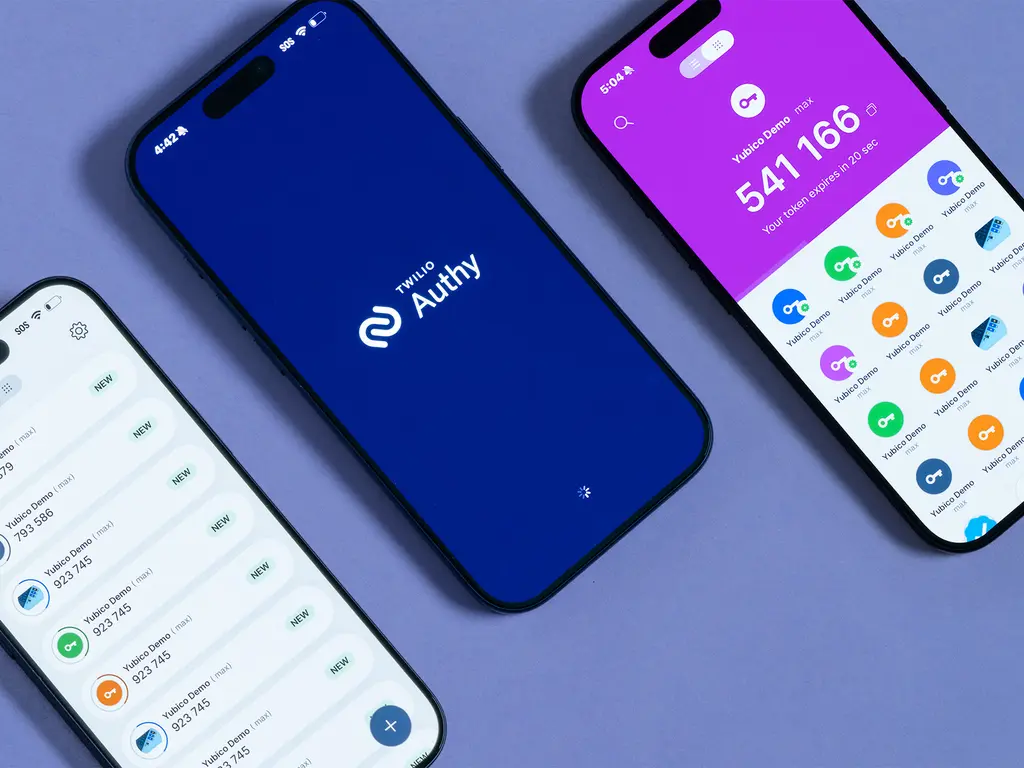
SMS-based 2FA, where you get a text message with a code, is better than nothing but has weaknesses. SIM swapping attacks can redirect your texts to a thief's phone. Authenticator apps like Google Authenticator, Authy, or Microsoft Authenticator are far more secure because they generate codes locally on your device. Hardware keys like YubiKey are the gold standard, though they're overkill for most casual users.
Start by enabling 2FA on your email account first, since it's the recovery method for almost everything else. Then your bank, your cloud storage, and your social media accounts. Most major services support it now, and the setup takes under two minutes per account.
Stop Ignoring Software Updates
Software updates aren't just about new features. They patch security holes that hackers are actively exploiting in the wild. When Apple or Microsoft pushes an update, it's often because researchers discovered a vulnerability that bad actors are already using to break into systems. Delaying updates leaves that door wide open.
Turn on automatic updates for your operating system, your browser, and your apps. Yes, occasionally an update breaks something minor, but the security risk of staying outdated is far worse than the inconvenience of a rare bug. Your phone, your laptop, and even your router should all be set to update automatically whenever possible.
Learn to Spot a Phishing Attempt
Phishing is how most successful attacks start these days. It's not about Nigerian princes anymore. It's about emails that look exactly like they came from your bank, your boss, or a delivery service you actually use. They create urgency, panic, or curiosity to get you to click a link and enter your credentials on a fake site.
The defense is simple but requires discipline. Never click links in unexpected emails. Instead, open your browser and navigate to the site directly. Check the sender's email address carefully, scammers use addresses that look almost right, like support@amaz0n-security.com instead of amazon.com. And when in doubt, call the company using a number from their official website, not one provided in the suspicious message.
Back Up Your Data Before You Need To
Your data should exist in at least two places at all times. Hard drives fail. Phones get dropped in toilets. Ransomware locks entire computers. If your only copy of family photos, tax documents, or work files lives on one device, you're one accident away from losing it all.
Cloud backup services like Google Drive, iCloud, Backblaze, or Dropbox make this painless. Set them to run automatically, and forget about them until you need them. For extra security, keep a local backup on an external hard drive as well. The 3-2-1 rule is a good guideline: three copies of important data, on two different media types, with one stored offsite.
SMS vs Authenticator App vs Hardware Key
Not all 2FA methods offer the same protection. Here's how they compare.
| Method | Security | Convenience | Best For |
|---|---|---|---|
| SMS Text Code | Low, vulnerable to SIM swapping | Very High, no app needed | Casual users as a last resort |
| Authenticator App | High, codes stay on your device | High, quick tap and copy | Most people, best balance |
| Hardware Security Key | Very High, physical possession required | Moderate, must carry the key | High-risk accounts, journalists, executives |
Pros and Cons
Pros
- Most habits are free and take minutes to set up
- Dramatically reduces your risk of being hacked
- Backups protect against hardware failure and ransomware
- 2FA stops automated attacks even if passwords leak
- Peace of mind when the next breach headline drops
Cons
- Initial setup takes about an hour across all accounts
- 2FA adds a small step to every login
- Password managers require trusting a third-party service
- Automatic backups can use significant cloud storage space
- Older relatives may need help with the learning curve
Expert Tip
Here's something most security guides miss. Go to haveibeenpwned.com and enter your email address. This free service, run by a respected security researcher, tells you exactly which data breaches have exposed your information. If your email shows up, change the password on that site immediately and anywhere else you reused it. Do this check every few months. It's the fastest way to discover if you're already compromised and fix it before attackers exploit it.
Frequently Asked Questions
Do I really need a password manager if I only use a few websites?
Yes. Even if you only have ten accounts, one breach on a site you forgot about can cascade into your email, bank, and social media. A manager makes unique passwords effortless.
Is 2FA annoying to use every day?
For the first few days, maybe. But authenticator apps are fast, and most services let you trust a device for thirty days at a time. After a week, you won't notice it anymore.
Can I get hacked even if I do everything right?
Technically yes, but the odds drop dramatically. Perfect security doesn't exist. The goal is to be harder to hack than the next person, which is usually enough to make automated attacks skip you entirely.
Should I pay for a password manager or use a free one?
Bitwarden's free tier is excellent for individuals. Paid tiers add family sharing, emergency access, and advanced 2FA options. Start free and upgrade only if you need those extras.
How often should I check for breaches?
Every three to six months is plenty for most people. Set a calendar reminder. It takes two minutes and can save you from months of identity theft cleanup.
Final Thoughts
Digital security feels overwhelming because the industry loves to scare you into buying expensive solutions. The reality is much simpler. Use unique passwords, turn on two-factor authentication, keep your software updated, learn to spot phishing, and back up your data. Those five habits protect you from the threats that actually affect real people.
You don't need to become a security professional. You just need to be slightly harder to hack than the person who still uses "password123" for everything. That's a very low bar, and crossing it takes less than an afternoon. Start today. Your future self will thank you the next time a major breach makes headlines and you can shrug it off with confidence.
🎥 Recommended Video
https://www.youtube.com/results?search_query=Easy+Digital+Security+Guide+Beginners+2026

No comments:
Post a Comment