
You probably think your password is fine. It's got a capital letter, a number, maybe an exclamation point at the end. You've used it for years. Your bank, your email, your Netflix account, that random forum you signed up for in 2019, they all share the same "secure" password. And that's exactly why you're one data breach away from losing everything.

The tiny habit that actually protects you isn't some complicated encryption ritual or buying a $200 security key. It's using a different password for every single account, and letting a password manager remember them all. That's it. One small change in behavior, and you go from being the easiest target on the internet to practically invisible against the most common type of attack.
How Credential Stuffing Actually Works
Here's how most people get hacked, and it has nothing to do with someone guessing your password. Hackers breach a website, steal its entire database of usernames and passwords, and then run those credentials through automated bots that try the same login combinations on hundreds of other sites. It's called credential stuffing, and it's devastatingly effective because most people reuse the same password everywhere.
When LinkedIn got breached in 2012, millions of passwords leaked onto the dark web. Years later, attackers were still using those credentials to break into people's email, banking, and social media accounts. Not because LinkedIn's breach was still active, but because the same password worked on those other sites too. Your security is only as strong as the weakest website you've ever signed up for.
What a Password Manager Actually Does
A password manager solves this by generating and storing a unique, complex password for every account. You don't have to remember them. You don't even have to type them. The manager autofills your login when you visit a site, and if that site ever gets breached, the leaked password is useless everywhere else. One compromised account stays isolated instead of becoming a master key to your entire digital life.
Getting Started in Ten Minutes
Getting started takes about ten minutes. Download a reputable password manager like Bitwarden, 1Password, or Dashlane. Create one master password, the only one you'll ever need to remember, and make it strong. A passphrase of four or five random words with some numbers mixed in is far more secure and memorable than a jumble of symbols. Think "correct-horse-battery-staple-47" instead of "P@ssw0rd!".
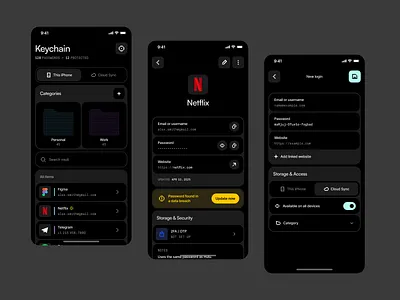
Once you're set up, start changing passwords on your most important accounts. Your email first, since it's the recovery point for everything else. Then your bank, your primary social media, and any work accounts. Most password managers can generate random 20-character passwords that look like alphabet soup. Let them. You don't need to read them, you just need to store them.
Over the next week, change passwords as you naturally log into sites. Don't try to do everything in one sitting or you'll burn out. The goal is forward momentum, not perfection on day one. Every account you convert from your old reused password to a unique generated one is a door that attackers can no longer open.
The Trust Question
Some people worry about putting all their passwords in one place. It's a fair concern, but here's the reality. A reputable password manager encrypts your vault locally on your device before it ever touches the internet. The company running the service can't see your passwords even if they wanted to. Compare that to your current system, where your one reused password is sitting in dozens of company databases, most of which have worse security than Bitwarden or 1Password ever will.
If you're still uneasy, enable two-factor authentication on your password manager itself. That way, even if someone somehow got your master password, they'd still need your phone or hardware key to access the vault. It's an extra layer that costs nothing and adds enormous peace of mind.
Password Manager vs Browser Saver vs Memory
Not all password storage methods are created equal. Here's how the common approaches stack up.
| Method | Security Level | Convenience | Unique Passwords |
|---|---|---|---|
| Password Manager | Very High, encrypted vault | High, autofills everywhere | Yes, generates unique ones |
| Browser Password Saver | Moderate, basic encryption | High, built into browser | No, you still create them |
| Memory Only | Low, leads to reuse | Low, constant resets | No, nearly impossible |
| Written Notebook | Moderate, physical theft risk | Very Low, manual lookup | Yes, if you write unique ones |
Pros and Cons
Pros
- Stops credential stuffing attacks instantly
- Generates passwords far stronger than any human would create
- Autofill is faster than typing passwords manually
- Breach monitoring alerts you when sites are compromised
- Works across phones, tablets, and computers seamlessly
Cons
- Forgetting your master password locks you out of everything
- Requires trusting a third-party service with your vault
- Premium features often cost $3 to $5 per month
- Initial setup takes time if you have dozens of accounts
- Older family members may struggle with the concept
Expert Tip
Here's something most guides won't tell you. Your password manager can do more than just store passwords. Use it to save answers to security questions too, and treat those answers like additional passwords. Instead of answering "What was your first pet's name?" with Fluffy, generate a random string like xK9#mP2$vL7 and store it in the notes field. Attackers research your personal history to guess these questions. Random answers make that impossible.
You can also use your manager to store software license keys, Wi-Fi passwords, and secure notes. Once you start treating it as your digital vault instead of just a password tool, you'll wonder how you ever lived without it.
Frequently Asked Questions
Is a password manager really safer than remembering my own passwords?
Yes, by a wide margin. The encryption used by major managers is virtually unbreakable, and the risk of credential stuffing from reused passwords is far more likely than a targeted attack on your vault.
What if the password manager company gets hacked?
Your vault is encrypted with your master password, which the company doesn't have. Even if attackers stole the entire database, they'd face encryption that would take centuries to crack with current technology.
Can't I just use my browser's built-in password saver?
It's better than nothing, but dedicated managers offer stronger encryption, cross-platform syncing, breach monitoring, and secure password sharing. Browser password tools are convenient but lack the advanced features that make a manager truly robust.
What happens if I lose my phone?
Your vault syncs across devices. Log in on your computer or tablet, and everything is there. Just make sure you know your master password.
Do I still need two-factor authentication if I use a password manager?
Absolutely. A password manager handles the first factor, something you know. Two-factor authentication adds the second factor, something you have. Together they create a security setup that stops almost every automated attack.
Final Thoughts
Getting hacked isn't usually about someone targeting you personally. It's about automated systems testing millions of stolen credentials until they find a match. When you reuse passwords, you're making that match inevitable.
Using a password manager isn't paranoia. It's basic hygiene, like locking your front door or wearing a seatbelt. It takes ten minutes to set up, costs nothing if you use a free option like Bitwarden, and instantly makes you harder to hack than 99% of people online.
Stop trusting your memory to keep you safe. Let a tool do what tools do best, and sleep better knowing that even if your favorite shopping site gets breached tomorrow, the leaked password won't open a single other door in your digital life.
🎥 Recommended Video
https://www.youtube.com/results?search_query=Password+Manager+Setup+Tutorial+2026

No comments:
Post a Comment