
You tapped update last night before bed, thinking nothing of it. This morning, three of your most-used apps won't stay open for more than ten seconds. Instagram closes when you try to post. Your banking app flashes a white screen and dies. Even your weather app, which hasn't changed in years, is suddenly unstable. What happened?
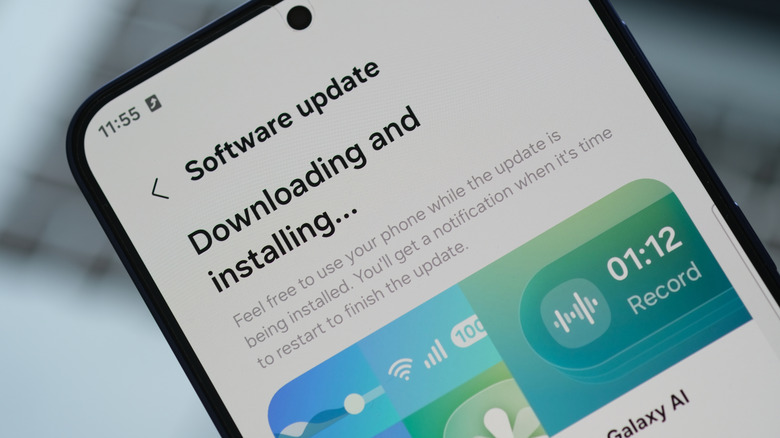
App crashes after a system or app update are one of the most common tech frustrations, and they're rarely caused by a single thing. Usually, it's a perfect storm of compatibility gaps, corrupted cache files, and background services that didn't restart cleanly. The good news is that most of these issues are fixable without waiting for the developer to push another patch.
The Update Changed Something Under the Hood
When a developer releases an update, they're building it on the latest version of the operating system with the newest tools and libraries. Your phone might not be running that version. If your device is even one or two OS releases behind, the app may be calling functions that don't exist on your hardware, or handling memory in ways your older system can't manage.
This is especially common on Android, where fragmentation means thousands of devices run different OS versions with custom manufacturer skins. An app that works flawlessly on a Pixel 9 running Android 16 might crash repeatedly on a three-year-old Galaxy phone still on Android 14. The app isn't necessarily broken, it's just speaking a slightly different language than your phone understands.
iPhone users aren't entirely immune either. While Apple's ecosystem is more controlled, major iOS updates sometimes introduce stricter memory management or permission models that catch developers off guard. Apps that were stable for months can suddenly start failing if they haven't been optimized for the new iOS architecture.
Corrupted Cache and Data
Updates often rewrite how an app stores temporary data. When that new code tries to read old cache files, things can go sideways. Corrupted cache is one of the sneakiest causes of post-update crashes because the app looks fine, it launches, it shows the splash screen, and then it hits a cached file it can't parse. Instant crash.
Clearing an app's cache is the fastest fix and it won't delete your login info or saved data. On Android, go to Settings, Apps, find the problematic app, tap Storage, and hit Clear Cache. On iPhone, you'll need to offload and reinstall the app since iOS doesn't expose individual cache clearing. This single step fixes about half of post-update crash issues immediately.
Compatibility Issues with Older Hardware
Sometimes the crash isn't the app's fault at all. Major OS updates change how the system allocates RAM, manages background tasks, and handles permissions. If an app was relying on a specific background behavior that the new OS restricts, it might run out of memory and shut down without warning.
This is why you often see a wave of crashes right after a new Android or iOS version drops. Developers need a few days, sometimes weeks, to catch up with the new rules. In the meantime, your phone is enforcing stricter limits that older app code wasn't written to handle. Background refresh gets throttled, location access becomes more restricted, and push notification services behave differently. Any one of these changes can destabilize an app that was perfectly happy yesterday.
Storage Pressure You Didn't Notice
Another overlooked cause is storage pressure. Updates are larger than they used to be, and they need breathing room to unpack, install, and optimize. If your phone is hovering around 90% full, the update process might leave behind fragmented files or incomplete installations that destabilize apps. Freeing up even two or three gigabytes can eliminate crashes that seem completely unrelated to storage.
Think of it like moving furniture into a room that's already cluttered. You can technically fit the new couch, but now you can't open the door. Your phone needs empty space to shuffle files around during updates, and without it, things get messy.

Clear Cache vs Reinstall vs Factory Reset
Here's a quick comparison of the three main ways to fix a crashing app after an update.
| Method | What It Does | Best For | Data Loss Risk |
|---|---|---|---|
| Clear Cache | Removes temporary files only | Quick first fix for single app crashes | None |
| Reinstall App | Downloads fresh copy from store | Cache clear didn't work, possible file corruption | Local data may be lost |
| Factory Reset | Wipes entire phone and starts fresh | System-wide crashes after major OS update | Everything, unless backed up |
Pros and Cons
Pros
- Most crashes resolve with simple, free troubleshooting steps
- No need to wait for developers to release a patch
- Clearing cache is fast and preserves your data
- Safe Mode makes it easy to identify rogue apps
- Learning these fixes saves time on future updates
Cons
- Some crashes are caused by bad code you can't fix yourself
- Reinstalling apps can mean reconfiguring settings
- Factory resets are time-consuming and wipe everything
- iOS offers fewer manual troubleshooting options than Android
- Older devices may simply be incompatible with newer app versions
Expert Tip
Here's something most people don't know. If multiple apps are crashing after an OS update, boot your phone into Safe Mode. On Android, hold the power button, then long-press Power Off until the Safe Mode prompt appears. On iPhone, power off completely and wait a few seconds before restarting. Safe Mode disables all third-party apps and runs only system software.
If your phone is stable in Safe Mode, you know a third-party app is the culprit. From there, uninstall apps one by one, starting with the ones you updated most recently, until the crashes stop. It's tedious, but it's the only way to identify a rogue app when the usual fixes don't work. I once traced a week of random crashes to a single widget app that hadn't been updated in two years but suddenly started conflicting with a new Android security patch.
Frequently Asked Questions
Why do apps crash right after I update them?
Usually because the new code conflicts with old cached data, your OS version, or another app running in the background. Clearing cache or reinstalling fixes most cases.
Will clearing cache delete my photos or messages?
No. Clearing cache only removes temporary files the app uses for quick loading. Your personal data, logins, and saved content remain untouched.
Should I avoid updating apps to prevent crashes?
Not really. Updates patch security holes and add features. The occasional crash is annoying, but running outdated software is riskier. If an update breaks something, roll back or wait for the next version.
How do I know if the crash is my phone or the app itself?
Check app reviews in the Play Store or App Store. If dozens of people are reporting the same crash after the latest update, it's a developer issue. If you're the only one, it's likely your device.
Can a factory reset fix app crashes?
Yes, but it's overkill for a single misbehaving app. Factory resets wipe everything and should be a last resort. Try cache clearing, reinstalling, and Safe Mode first.
Final Thoughts
App crashes after updates are frustrating, but they're rarely permanent. Most of the time, a little digital housekeeping clears things up in under five minutes. Your phone isn't broken, the app isn't doomed, and you don't need a new device.
Start with the cache. Move on to a reinstall if that fails. Check your storage, update your OS if you can, and don't be afraid to boot into Safe Mode when things get weird. The update that broke your favorite app probably isn't the end of the world. It's just your phone asking for a quick tune-up before everything runs smooth again.
🎥 Recommended Video
https://www.youtube.com/results?search_query=Fix+Apps+Crashing+After+Update+Android+iOS

No comments:
Post a Comment