
Some people glide through their digital lives while the rest of us are still fumbling with passwords, losing tabs, and retyping the same email address for the hundredth time. The difference usually isn't a fancy app or expensive gadget. It's a handful of tiny habits most people never think to set up.
The good news? Every one of these habits takes less than five minutes to configure, costs nothing, and pays off daily. Here are seven small tech habits that quietly make everyday tasks feel surprisingly easier.
Use Clipboard History and Stop Retyping Everything
You copy and paste dozens of times a day. A link from Slack. An address from Maps. A tracking number from an email. Every time you copy something new, the old thing disappears forever. Unless you turn on clipboard history.
On Windows, press Windows key plus V. Click yes on the prompt, and your PC remembers the last twenty things you copied. On Android, Gboard has a built-in clipboard manager in the keyboard toolbar. iPhone users can access history through the Shortcuts app or keyboards like SwiftKey.
This eliminates the endless back-and-forth between apps. No more retyping passwords because you accidentally copied something else. Your clipboard becomes a tiny assistant that never forgets.
Pin and Group Your Browser Tabs
If your browser looks like a digital junkyard with forty tabs open, start pinning the ones you use all day. Right-click any tab in Chrome, Edge, or Firefox and select Pin. It shrinks to a tiny favicon and stays locked to the left side, surviving restarts and accidental closes.
Then use tab groups. Right-click a tab, choose Add to New Group, and give it a name and color. Work stuff goes in blue. Shopping goes in red. Articles for later go in green. Collapse entire groups with one click to clear visual clutter without losing anything.
Automate Your Phone with Shortcuts and Routines
Your phone can do things automatically while you sleep, and most people never bother to set it up. On iPhone, open the Shortcuts app and tap Automation. Create a trigger for when your alarm goes off or when you arrive home. Have it text your partner, turn on Do Not Disturb, and open your workout playlist.
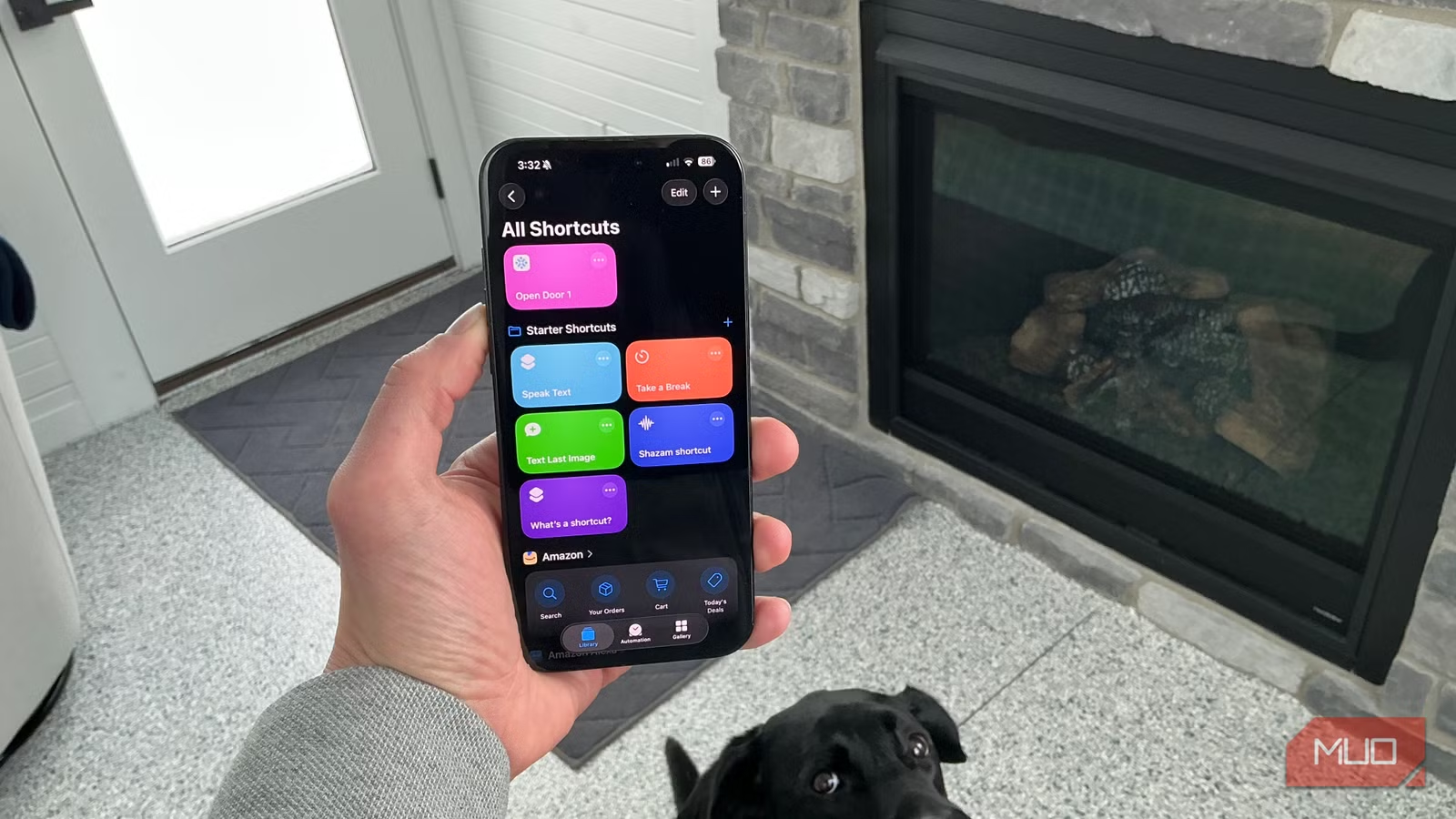
On Android, Google Assistant Routines and Samsung Bixby Routines do the same thing. A single trigger, like connecting to your car's Bluetooth, can launch navigation and send an automated "I'm driving" text. These automations feel like magic the first time they work, then become invisible. Technology should handle the boring stuff so you don't have to think about it.
Use Voice-to-Text for Quick Notes and Replies
Voice-to-text has gotten shockingly good in the past two years. If you're still thumb-typing every message, you're working harder than you need to. Tap the microphone icon on your phone's keyboard and just talk. For quick replies, grocery lists, and brainstorming, it's dramatically faster than typing.
Use it when typing is annoying. Walking with grocery bags. Cooking with flour on your hands. Lying in bed with the lights off. iPhone and Android both support voice dictation in nearly every text field now, and the accuracy is genuinely impressive. Give it a real try for one week and you'll be surprised how much time you save.
Schedule Do Not Disturb Like a Pro
Do Not Disturb isn't just for movies and meetings anymore. On iPhone, go to Settings, Focus, and create a custom focus mode for work hours that only allows calls from your boss and notifications from Slack. Create another for sleep that blocks everything except emergency contacts.
On Android, Digital Wellbeing has similar scheduling. Set it to turn on automatically based on time or location. When you walk into the office, work mode activates. When you get home, it switches to personal mode. You stop being a slave to every random notification because your phone already knows what attention you want to give.
Reopen Closed Tabs with Ctrl+Shift+T
Everyone has closed a browser tab by accident and felt that brief panic. Instead of digging through history, press Ctrl plus Shift plus T on Windows or Command plus Shift plus T on Mac. It instantly reopens the last closed tab, and you can press it repeatedly to reopen tabs in reverse order.
This shortcut also works if you accidentally close an entire window full of tabs. And in most browsers, it persists across sessions, so even after restarting your computer, you can bring back that tab from yesterday. It's the undo button for your browsing session, and it's been sitting on your keyboard this whole time.
Share Location with Family for Peace of Mind
This one isn't about productivity. It's about peace of mind. Set up location sharing with close family through Find My on iPhone or Google Maps on Android. Not to spy on each other, but so nobody has to send that "did you make it home okay?" text ever again.
When your partner or kid arrives safely, you just know. When they're running late, you can see they're stuck in traffic instead of worrying. When you can't find your phone, someone else in your family can ping it. It's a tiny setup that removes a surprising amount of daily mental load.
Effort vs Payoff Comparison
| Habit | Setup | Daily Payoff | Best For |
|---|---|---|---|
| Clipboard History | 30 seconds | High, saves constant retyping | Anyone who copies and pastes |
| Pinned Tab Groups | 2 minutes | Medium, reduces visual chaos | Heavy browser users |
| Phone Automations | 5 minutes | High, hands-free convenience | Commuters and busy parents |
| Voice-to-Text | Zero | High, faster than thumb typing | Multitaskers and slow typists |
| Scheduled Focus Modes | 3 minutes | Medium, mental clarity | Anyone distracted by notifications |
| Ctrl+Shift+T | Zero | Low but frequent | Every browser user |
| Location Sharing | 1 minute | Medium, peace of mind | Families and couples |
Pros and Cons
Pros
- Every habit is free and takes under five minutes to set up
- Built into operating systems and browsers you already use
- Compound together for massive daily time savings
- No new apps or subscriptions required
- Reduce mental load and digital frustration significantly
Cons
- Some habits require a brief learning curve
- Phone automations vary between iPhone and Android
- Voice-to-text isn't perfect in noisy environments
- Location sharing requires trust and privacy comfort
- It's easy to forget shortcuts if you don't use them daily
Expert Tip
Here's something most people overlook. If you use multiple devices, clipboard history and pinned tabs sync across them when you're signed into the same account. The tab you pinned on your work laptop shows up on your home desktop. The real power isn't in any single habit. It's in how they compound across every screen you touch.
Frequently Asked Questions
Which habit saves the most time?
Clipboard history and voice-to-text win on raw minutes saved per day. Scheduled focus modes and location sharing win on stress reduction.
Do these work on older devices?
Most do. Clipboard history needs Windows 10 or newer. Voice-to-text works on virtually any smartphone from the past five years. Tab pinning and keyboard shortcuts have been around for over a decade.
Will automations drain my battery?
Not noticeably. Modern phones are optimized for background routines, and most automations only trigger a few times per day.
Is location sharing safe?
Yes, with trusted family members. Both Apple and Google use encrypted connections, and you can stop sharing anytime.
Can I use these habits if I switch between iPhone and Android?
Most translate. Tab pinning and keyboard shortcuts are universal. Clipboard history exists on both platforms. Only Shortcuts versus Google Routines work differently but achieve similar results.
Final Thoughts
Technology is supposed to make life easier, but too often it feels like we're serving our devices instead of the other way around. These seven habits flip that relationship. They're small, invisible tweaks that remove friction from things you do dozens of times per day.
Pick two or three that resonate with you and set them up this afternoon. Don't try to adopt all seven at once or you'll burn out. Start with clipboard history and Ctrl plus Shift plus T. Add voice-to-text next week. Let the automations come naturally.
A year from now, you won't remember what your digital life felt like before them. And that's exactly how good technology should work. Quiet, effortless, and always one step ahead of what you need.
🎥 Recommended Video
https://www.youtube.com/results?search_query=Small+Tech+Habits+That+Save+Time+Every+Day

No comments:
Post a Comment