
There's nothing quite like unboxing a new phone. The smell of fresh packaging, the pristine screen, that satisfying peel of the protective film. Then reality hits: you've got years of photos, thousands of text messages, and more apps than you can count living on your old device. The thought of moving everything over can suck the joy right out of the experience.
Here's the thing though. Phone manufacturers know this is the worst part of upgrading. Over the last few years, they've built tools that make the process almost automatic. Whether you're switching from iPhone to iPhone, Android to Android, or jumping between ecosystems entirely, there's a method that'll get your data across without the usual migraine. You just need to know which path to take.
Step One: Do the Prep Work
Before you touch either device, charge them both to at least fifty percent. Data transfers are power-hungry, and nothing kills the mood like your old phone dying halfway through moving twelve thousand photos. Connect both phones to Wi-Fi, preferably a strong, stable network. If you're using mobile data for any part of this, check your plan. Some transfers can chew through several gigabytes.
Next, clean house. Go through your old phone and delete the photos you'll never look at again. Clear out screenshots, duplicate downloads, and that video of your cousin's wedding you meant to delete three years ago. The less junk you move, the faster everything goes. Plus, your new phone starts life with breathing room.
iPhone to iPhone: The Easiest Path
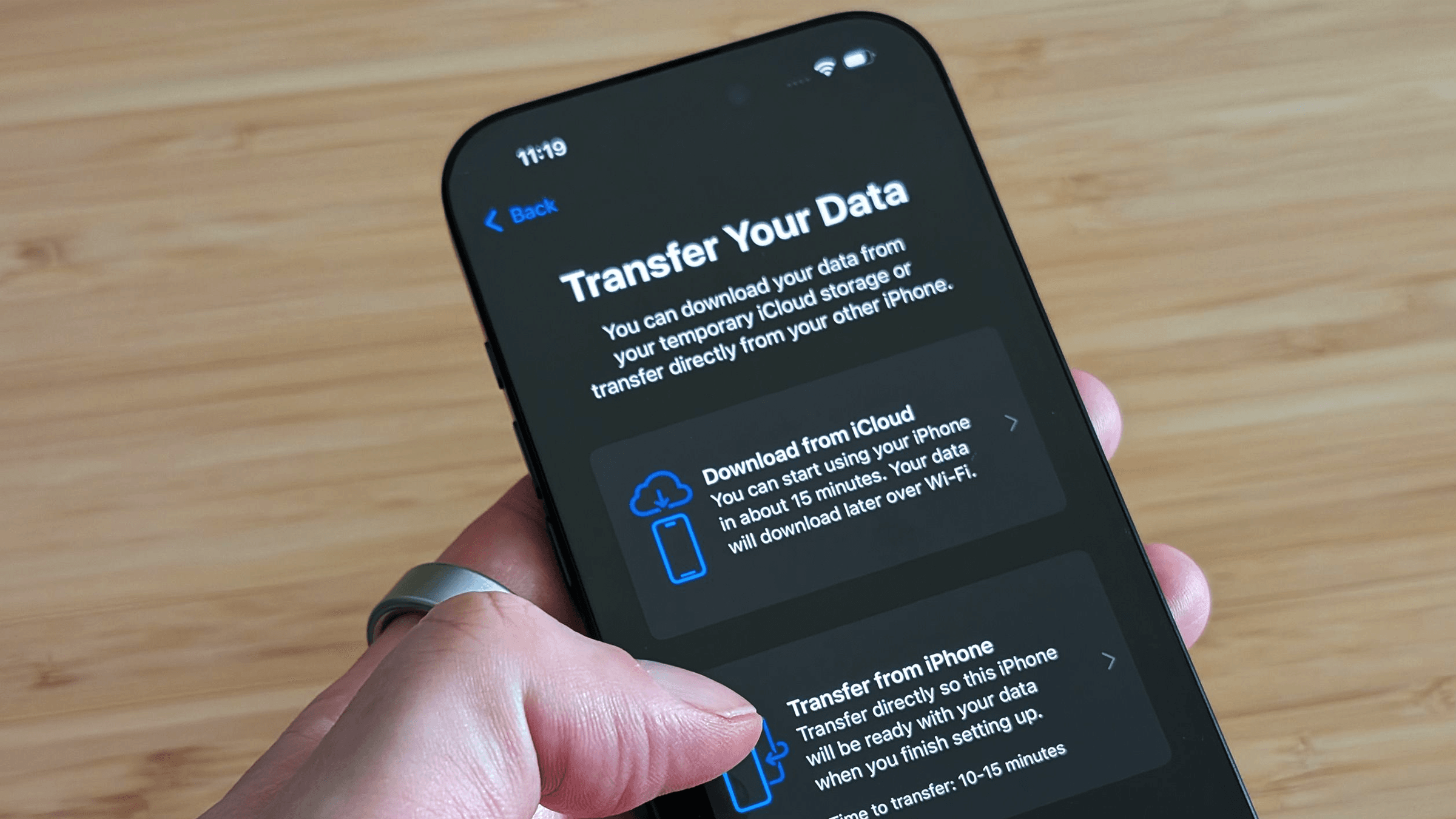
Apple has refined this process to the point where it's almost boring, which is exactly what you want. When you turn on your new iPhone, you'll see a screen called Quick Start. Hold your old iPhone near it. A prompt appears asking if you want to set up the new device using your Apple ID. Tap Continue, scan the animation that appears on the new phone, and you're connected.
The two phones talk directly to each other over Wi-Fi and Bluetooth. You can choose to transfer everything directly from the old device, which is faster if you have a lot of data and a solid connection. Alternatively, you can restore from an iCloud backup, which is handy if your old phone is already packed away or traded in.
Direct transfer usually takes fifteen to forty-five minutes depending on how much you're moving. iCloud restore can take longer since it downloads everything from the internet, but your new phone becomes usable much sooner. Apps and photos continue downloading in the background while you set up Face ID and preferences.
Android to Android: Google's Got You
Google's built-in backup system has come a long way. If you've had backup enabled on your old Android phone, most of your data is already living in Google's servers. When you set up the new device and sign in with the same Google account, it offers to restore everything from your latest backup. Tap yes, pick the backup you want, and let it cook.
Most modern Android phones also include brand-specific tools. Samsung offers Smart Switch, which works wirelessly or through a USB cable. Google's own Pixel phones use a setup process nearly identical to Apple's Quick Start. OnePlus, Xiaomi, and Motorola all have their own migration apps that grab not just photos and contacts, but also call logs, messages, and even some app data.
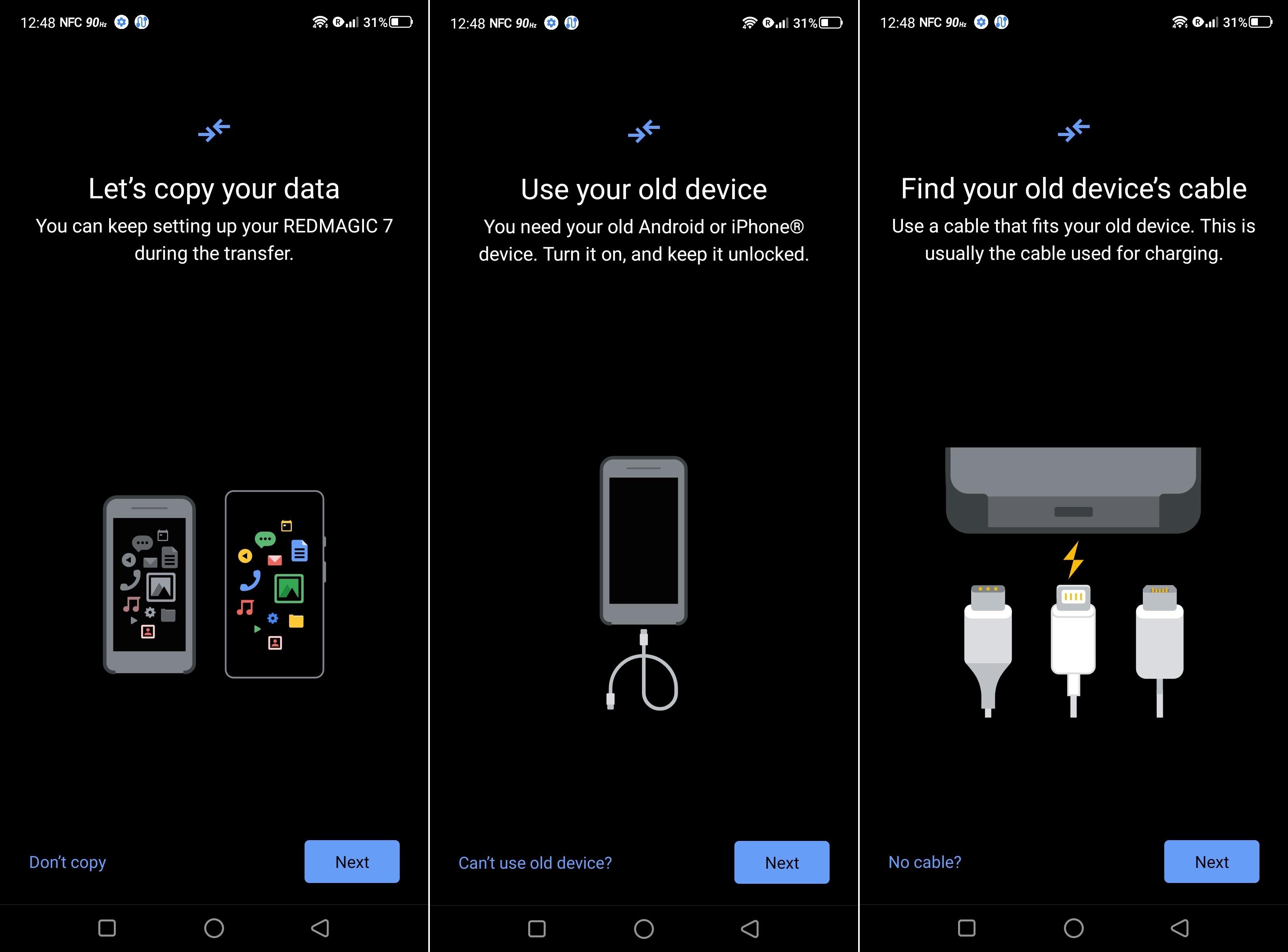
The cable method is underrated. If both phones support USB-C, you can connect them directly with a USB-C to USB-C cable. It's faster than Wi-Fi, more reliable than cloud downloads, and it works even if your internet connection is spotty.
Switching Between iPhone and Android
This is where things get slightly messier, but it's still nowhere near the nightmare it used to be.
If you're moving from Android to iPhone, Apple provides an app called Move to iOS. Download it on your Android phone before you start setting up the new iPhone. During iPhone setup, choose Move Data from Android, and the two devices pair over a private Wi-Fi network. It transfers contacts, message history, camera photos and videos, mail accounts, and calendars. It won't move apps, obviously, but the App Store will suggest iOS versions of your Android apps once you're done.
Going from iPhone to Android is similar but reversed. Google built a Switch to Android app for iOS. It backs up your contacts, photos, videos, calendar, and messages to Google Drive, then restores them during your new Android setup. Some Samsung phones can also pull data directly from an iPhone using Smart Switch.
The one pain point in cross-platform moves is iMessage. If you're leaving iPhone, deregister iMessage before you switch. Go to Settings > Messages and turn off iMessage. If you skip this step, your phone number might stay tied to Apple's servers, and you'll miss texts from other iPhone users for days.
Cloud Services: The Universal Safety Net
Even if you're using built-in transfer tools, cloud storage is your best friend during a phone switch. Google Photos and iCloud Photos can hold your entire photo library online, making them available instantly on any device. Dropbox, OneDrive, and Amazon Photos work the same way.
For files and documents, Google Drive, iCloud Drive, and Microsoft OneDrive act as bridges. Upload everything from the old phone, sign in on the new one, and download what you need. This approach is slower than direct transfer, but it gives you total control. You can pick exactly which files make the journey and leave the rest behind.
One tip: if you use WhatsApp, Telegram, or Signal, check their built-in backup options before you switch. WhatsApp in particular can back up chats to Google Drive on Android or iCloud on iPhone. Restore that backup on the new device, and your entire conversation history comes with you.
What About Apps and App Data?
Here's the hard truth. No transfer method moves your apps exactly as they were. On iPhone, apps reinstall from the App Store automatically, but you'll need to log back into most of them. On Android, the same applies through the Play Store. Game progress, unless tied to an account like Google Play Games or Apple Game Center, usually doesn't transfer.
Password managers are your lifesaver here. If you use one, and you absolutely should, signing back into everything takes minutes instead of hours. If you don't, now is the perfect time to start. Export your passwords from your old phone's built-in manager, import them into something like Bitwarden or 1Password, and thank yourself later.
Transfer Methods at a Glance
| Method | Best For | Speed | What Transfers | Limitations |
|---|---|---|---|---|
| iPhone Quick Start | iPhone to iPhone | 15-45 min | Everything | Both phones needed |
| Google Backup Restore | Android to Android | 20-60 min | Apps, data, photos | Depends on backup age |
| Move to iOS | Android to iPhone | 20-40 min | Contacts, photos, messages | No apps transferred |
| Switch to Android | iPhone to Android | 30-60 min | Contacts, photos, calendar | iMessage must be disabled first |
| Cable Transfer | Any same-brand switch | 10-30 min | Most data | Needs compatible cable |
| Cloud Services | Cross-platform | Varies | Photos, files, documents | Requires manual setup |
Pros and Cons of Modern Phone Transfers
Pros: The process is dramatically easier than it was five years ago. Most people can complete a transfer without touching a computer. Wireless tools work surprisingly well, and direct phone-to-phone methods preserve more data than cloud restores. You also get a natural moment to declutter and organize your digital life.
Cons: App data and login sessions rarely make the jump, so you'll spend time signing back in. Cross-platform moves still have rough edges, especially around messaging services. Large photo libraries can take hours over Wi-Fi. And if something goes wrong mid-transfer, troubleshooting can be frustrating since you're dealing with two devices at once.
Expert Tip
Before you wipe or trade in your old phone, do a sanity check. Open your new phone and verify that your photos are actually there, not just thumbnails waiting to download. Send a text message to someone. Make a test phone call. Check that your contacts aren't duplicated or missing. Open your banking app and confirm it works. This five-minute verification can save you from the nightmare of discovering a failed transfer two weeks after your old phone is gone.
Frequently Asked Questions
Will my text messages transfer to the new phone?
Yes, in most cases. iPhone to iPhone transfers include iMessage and SMS history. Android to Android moves texts through Google Backup. Cross-platform switches using Move to iOS or Switch to Android also handle messages, though formatting might look slightly different.
Do I need a computer for any of this?
No. Every major phone transfer method now works directly between devices or through the cloud. Computers are only necessary if you're restoring from a local iTunes or Finder backup, which most people no longer need to do.
What if my new phone doesn't have enough storage?
The setup process will warn you before starting. If you're short on space, the transfer will skip larger items like videos. You can always move those later through cloud storage or by connecting to a computer. Consider upgrading your cloud storage plan temporarily if you're dealing with a massive photo library.
Will my apps transfer automatically?
They'll reinstall automatically on both iPhone and Android if you're using built-in transfer tools. However, you'll need to log back into most of them. App data like game saves or offline downloads usually doesn't transfer unless the app itself syncs to the cloud.
How soon can I wipe my old phone?
Wait at least twenty-four hours. Use your new phone normally, check that everything critical is there, and confirm your cloud backups are current. Once you're sure, sign out of all accounts on the old device, remove your SIM, and then perform a factory reset.
Final Thoughts
Moving to a new phone used to be a weekend project involving cables, spreadsheets, and possibly tears. Those days are mostly behind us. Whether you're loyal to one ecosystem or making a bold switch, the tools exist to get your photos, files, and memories across intact.
The key is picking the right method for your situation, doing a little prep work, and resisting the urge to panic when something looks like it didn't transfer. Most of the time, it's just still downloading in the background. Take a breath, grab a coffee, and let the technology do what it was built to do. Your new phone will feel like home sooner than you think.
Recommended Video
🎥 Watch step-by-step tutorials on transferring data to a new phone

No comments:
Post a Comment