
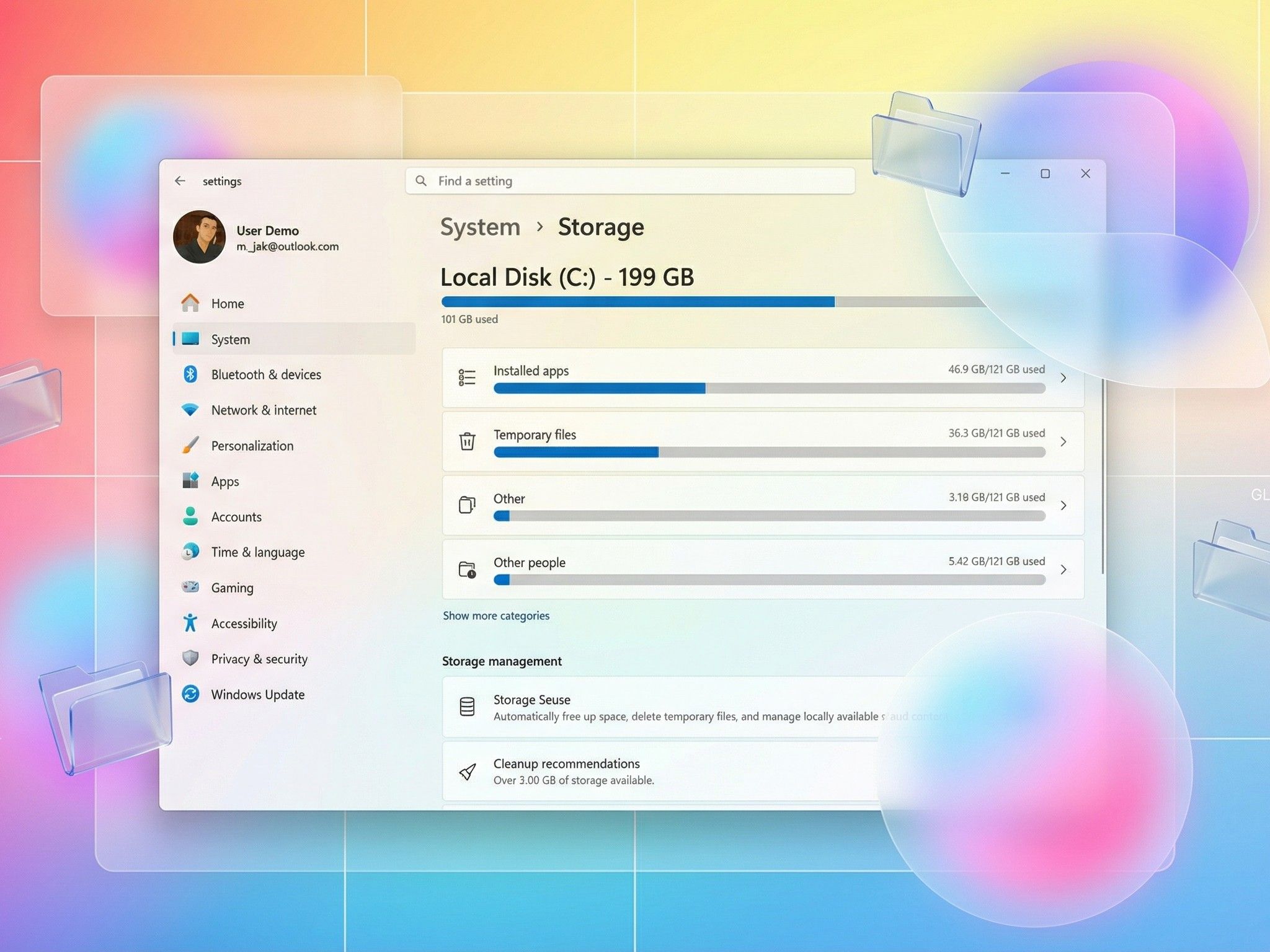
You open Settings, click System, then Storage, and there it is. A gray bar labeled "Other" eating up 40, 60, maybe 80 gigabytes of your drive. Windows won't tell you what's inside. It just sits there, smug and mysterious, while your C: drive gasps for air. You've cleared Temporary files. You've uninstalled games. You've emptied the Recycle Bin twice. And still, "Other" refuses to shrink.
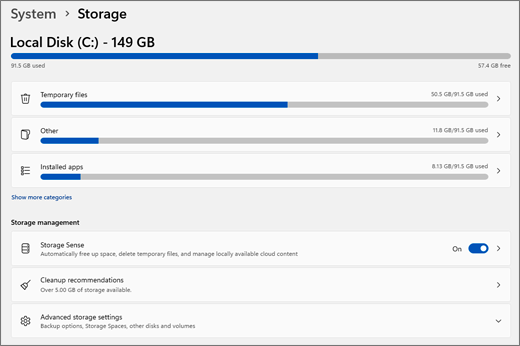
Here's the truth. "Other" isn't a single thing. It's a catch-all bucket where Windows dumps everything it doesn't know how to categorize. Some of it is essential. Some of it is digital debris you can safely delete. And a surprising amount of it is stuff you forgot you downloaded. Let's break open that gray bar and see what's actually hiding inside.
What "Other" Actually Means
Windows 11's Storage settings divides your drive into neat categories like Apps, Documents, Pictures, and Temporary files. Anything that doesn't fit gets labeled "Other." That sounds simple until you realize how much doesn't fit. Windows Update leftovers, paging files, hibernation data, browser caches, old driver packages, system restore points, and third-party app data all get thrown into the same bin.
The frustrating part is that Windows won't let you click "Other" to see a detailed breakdown. You have to go hunting. But once you know where to look, the mystery dissolves pretty quickly.
Windows Update Leftovers
The biggest single culprit is usually the Windows Update Cleanup folder. Every time your PC installs a cumulative update, Windows keeps the old installation files in case something goes wrong and you need to roll back. These files can balloon to 20 or 30 gigabytes over time, and Windows is supposed to delete them automatically after ten days. Sometimes it forgets. Other times, a failed update leaves behind fragments that never get cleared.
Paging Files and Hibernation Data
Another massive space hog is the paging file, also called virtual memory. Windows uses a portion of your SSD or hard drive as extra RAM when your physical memory fills up. On systems with 16GB of RAM or less, this file can easily consume 16 to 32GB. It's technically "Other" because it isn't a user file, but it's also something you shouldn't delete unless you know exactly what you're doing. Disabling it entirely can cause crashes when memory runs low.
Hibernation files are similarly chunky. If your PC is set to hibernate instead of sleep, Windows saves your entire RAM contents to a file called hiberfil.sys so it can power back on exactly where you left off. On a 32GB system, that file is 32GB. Right there in "Other," invisible and immovable unless you disable hibernation entirely through Command Prompt.
The WinSxS Component Store
Then there's the WinSxS folder, a component store that keeps multiple versions of system files side by side. It allows Windows to roll back problematic updates and repair corrupted system files. Over time, it grows. A clean install might show 5GB. After two years of updates, it can hit 15GB or more. Windows has a built-in tool to trim it, but it won't do it automatically. The folder is also protected, so you can't just delete things from it manually.
Third-Party App Data You Forgot About
Third-party app data also contributes more than you'd expect. Steam downloads, Adobe cache files, Discord updates, Spotify offline music, and Zoom recordings all live in folders Windows doesn't track under their official app categories. They quietly accumulate until "Other" looks like a digital landfill. Even your browser's profile folder, which stores extensions, cached images, and site data, can grow to several gigabytes without you noticing.
How to Actually Clean It Up
Here's how to actually investigate what's eating your space. Download a free tool called WinDirStat or WizTree. These programs scan your entire drive and display every folder as a colored rectangle, with larger files shown as bigger blocks. Within five minutes, you'll see exactly which folders are bloated. It's like an X-ray for your hard drive.
If you prefer built-in tools, open Command Prompt as administrator and run "dism /Online /Cleanup-Image /StartComponentCleanup" to trim the WinSxS folder. Run "powercfg /hibernate off" to delete hiberfil.sys if you don't use hibernation. And open Disk Cleanup, click Clean up system files, and check Windows Update Cleanup to reclaim those stranded installation files.
For the brave, you can also manually clear browser caches, old NVIDIA or AMD driver installers in C:\NVIDIA or C:\AMD, and leftover setup files in your Downloads folder. Just be careful. If a folder name includes "System," "SysWOW64," or "Windows," leave it alone unless you know exactly what it does.
Disk Cleanup vs Storage Sense vs Manual Tools
Here's how the three main cleanup approaches compare for reclaiming "Other" storage.
| Method | Best For | Safety | Space Reclaimed |
|---|---|---|---|
| Disk Cleanup | Windows Update files, temp data | Very Safe, built-in | 10 to 30 GB |
| Storage Sense | Automated ongoing maintenance | Very Safe, configurable | 5 to 15 GB recurring |
| WinDirStat / WizTree | Finding hidden large folders | Moderate, manual deletion | Variable, up to 50 GB+ |
Pros and Cons
Pros
- Reclaim 20 to 50 GB without spending a dime
- Built-in Windows tools handle most of the heavy lifting
- Storage Sense automates cleanup so it never piles up again
- Visualization tools make hidden space hogs impossible to miss
- Your PC runs faster with more free disk space available
Cons
- Manually deleting the wrong system files can break Windows
- Some "Other" files are essential and cannot be removed
- The process takes 30 to 60 minutes the first time
- Windows doesn't make it easy to see what's inside "Other"
- Cleanup is temporary, files will accumulate again over time
Expert Tip
Here's something almost nobody mentions. Windows 11 has a feature called Storage Sense that can automate most of this cleanup for you. Go to Settings, System, Storage, and turn on Storage Sense. Click Configure, and set it to delete temporary files and Recycle Bin contents daily or weekly. More importantly, enable the option to delete previous versions of Windows after a specified number of days. This single setting prevents the Windows Update Cleanup folder from growing out of control in the first place. It's not on by default, which is honestly baffling.
Frequently Asked Questions
Why is "Other" so much bigger on my laptop than my desktop?
Laptops often have smaller drives to begin with, and manufacturers preload more bloatware, recovery partitions, and driver packages. The same files take up a larger percentage of a 256GB drive than a 1TB drive.
Can I just delete everything in "Other"?
Absolutely not. Some of it is essential system data. Use Disk Cleanup, Storage Sense, or a visualization tool like WinDirStat to identify safe targets before deleting anything.
Does "Other" include viruses or malware?
Not typically, but unusually large "Other" storage can sometimes hide suspicious files. If your "Other" category suddenly jumps by 50GB overnight, run a full antivirus scan just to be safe.
Will an SSD fill up faster than a hard drive?
No, the storage type doesn't affect how fast data accumulates. But SSDs perform worse when they're nearly full, so keeping at least 15% free space matters more on solid-state drives.
Should I upgrade my drive instead of cleaning?
If your drive is 256GB or smaller and you regularly run out of space, a 500GB or 1TB SSD upgrade is the smartest long-term fix. Cleanup helps, but you can't defy physics. At some point, you simply need more room.
Final Thoughts
"Other" storage isn't a Windows bug. It's a design choice that prioritizes system stability over disk space transparency. Windows would rather keep old update files, component stores, and memory caches than risk a failed rollback or a corrupted repair.
That doesn't mean you have to live with a full drive. A few targeted cleanups, an automated Storage Sense schedule, and occasional vigilance with third-party app data will keep "Other" from swallowing your system whole. Your C: drive deserves better than being held hostage by a gray bar with a vague label.
🎥 Recommended Video
https://www.youtube.com/results?search_query=Windows+11+Other+Storage+Cleanup+Fix

No comments:
Post a Comment