
You slide your phone into your pocket, thinking nothing of it. Ten minutes later, you pull it out and your camera is open, three apps are running, and somehow you almost called your boss at midnight. Your lock screen has been throwing a party in your pocket, and you weren't invited.
This isn't a rare glitch. It's one of the most common smartphone annoyances, and it happens because modern phones are a little too eager to wake up. Features designed for convenience—like tap-to-wake, raise-to-wake, and always-on displays—don't know the difference between your finger and your thigh. The good news? You can teach them some manners without turning your phone into a brick.
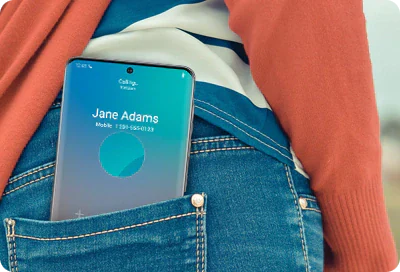
Why Your Screen Can't Stay Asleep
Modern smartphones are packed with sensors that constantly scan for input. When they work right, you glance at your phone and the screen lights up like magic. When they work wrong, your pocket becomes a touchscreen nightmare. Here are the usual suspects.
Raise to Wake
Also called Lift to Wake, this feature uses the accelerometer to detect when you pick up your phone. It's genuinely useful when you're checking the time or reading a notification. But it doesn't know you're walking. Every step, every bounce, every slight tilt can trick it into thinking you want to see the screen. In a tight pocket, that means constant wake-ups.
Tap to Wake
Tap to Wake lets you double-tap the screen to check notifications without pressing a button. It's slick on a desk. In your pocket, though, that same double-tap can happen when your leg brushes against the fabric. Some phones are sensitive enough to register touch through thin jeans or gym shorts, which turns your thigh into an unauthorized user.
Always-On Display
Always-On Display keeps a dim clock and notification icons visible at all times. It doesn't fully wake the screen, but it keeps it active enough that accidental touches can escalate quickly. If your phone is in a loose pocket and the screen presses against your leg, those dim icons become full-blown app launches.
Smart Lock and Trusted Places
Android's Smart Lock and similar iPhone features keep your phone unlocked when you're at home, connected to your car, or wearing a trusted Bluetooth device. The idea is to reduce friction. The reality is that an unlocked phone in your pocket is a pocket dial waiting to happen. If Smart Lock is active, one accidental swipe and you're already inside your apps.
Physical Button Presses
Sometimes it's not the screen at all. A tight pocket, a rigid phone case, or simply the way you sit can press the power or volume buttons repeatedly. On some phones, pressing the power button wakes the screen instantly. On others, a volume button press can trigger the camera. Either way, your pocket becomes a button-masher.
How to Stop the Pocket Party
iPhone Users
Head to Settings > Display & Brightness and turn off Raise to Wake. Then go to Settings > Accessibility > Touch and disable Tap to Wake. If you're running iOS 17 or later, also check Settings > Face ID & Passcode and make sure Attention Aware Features aren't keeping the screen lit when they shouldn't. These three changes alone solve most pocket wake issues on iPhones.
Samsung Galaxy Users
Samsung has one of the best built-in protections. Go to Settings > Display and enable Accidental Touch Protection. This feature detects when your phone is in a dark, enclosed space and blocks screen input. You should also disable Lift to Wake under Settings > Advanced Features > Motions and Gestures. If you use Always-On Display, consider switching it to tap-to-show instead of always-on.
Google Pixel Users
On Pixel phones, open Settings > Display and turn off both Tap to Check Phone and Lift to Check Phone. If you have Now Playing enabled, that's generally harmless, but it does keep the lock screen slightly active. For pocket safety, keeping those wake gestures off is your best bet.
OnePlus, Xiaomi, and Other Android Brands
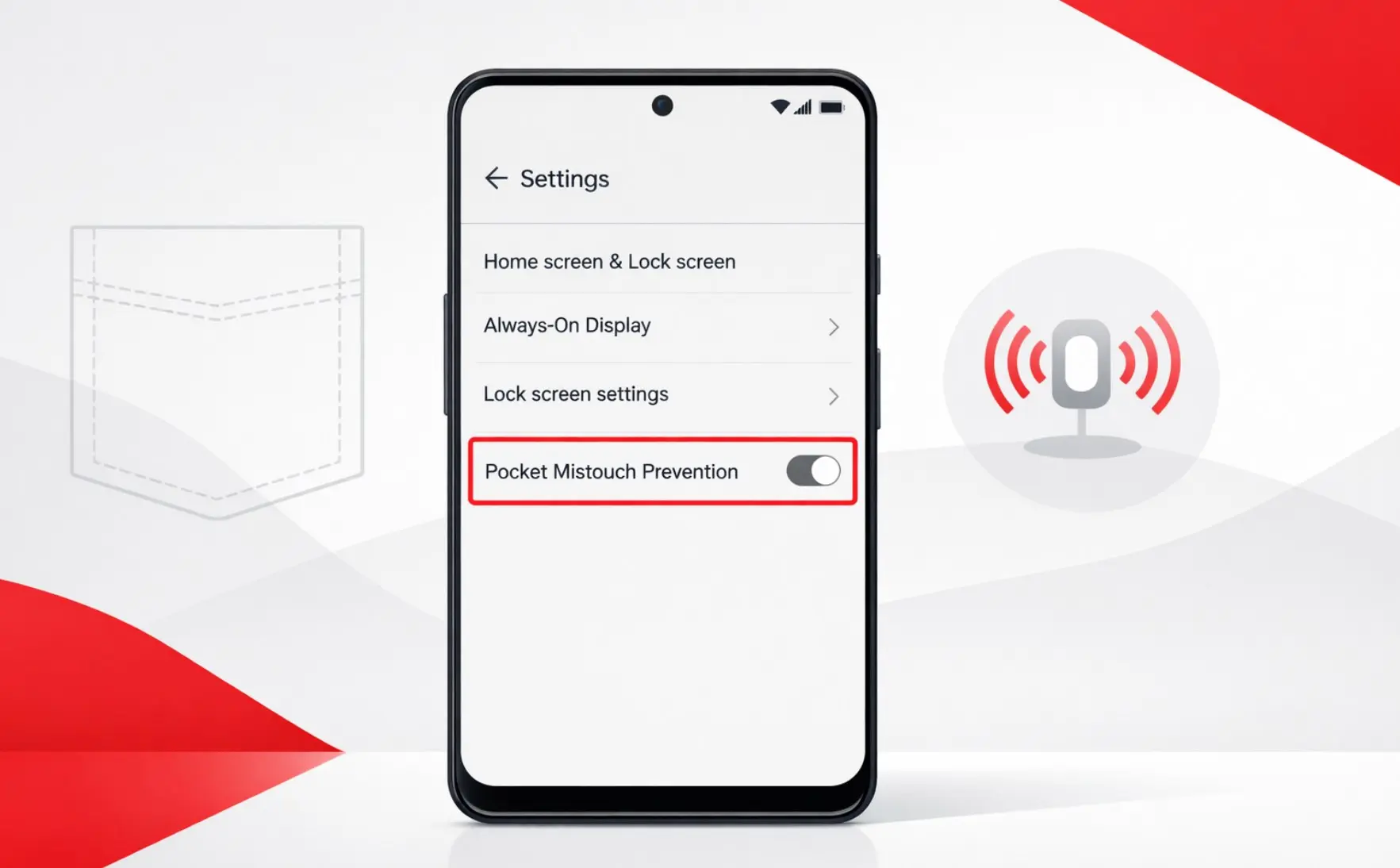
Many Chinese Android brands include a dedicated Pocket Mode. On OnePlus, it's under Settings > Display > Pocket Mistouch Prevention. On Xiaomi, you'll find it in Settings > Lock Screen > Pocket Mode. These features use the proximity sensor to detect when your phone is covered and lock the screen regardless of button presses or touches. If your phone has this option, turn it on. It's the single most effective fix.
Wake Features Compared
| Feature | What It Does | Pocket Risk | Easy to Disable? |
|---|---|---|---|
| Raise to Wake | Screen lights up when lifted | High | Yes |
| Tap to Wake | Double-tap wakes screen | Very High | Yes |
| Always-On Display | Keeps screen dimly lit | Moderate | Yes |
| Smart Lock | Keeps phone unlocked in trusted zones | High | Yes |
| Pocket Mode | Blocks input when covered | None | Turn On |
Pros and Cons of Disabling Wake Features
Pros: Your battery lasts longer because the screen isn't lighting up fifty times a day. You stop pocket dialing people. Random apps stop opening. Your phone stays cooler. And you won't pull out your device to find your flashlight has been on for twenty minutes.
Cons: You'll need to press the power button to check notifications, which takes a fraction of a second longer. If you disable Always-On Display, you lose the convenience of glancing at the time without touching your phone. And if you turn off Smart Lock, you'll enter your PIN more often at home. It's a small trade-off for sanity.
Expert Tip
Here's a hardware hack most people overlook: the way you orient your phone in your pocket matters. If you slide it in with the screen facing your leg, every step presses the screen against fabric and skin. Flip it so the screen faces outward, away from your body. This simple rotation reduces accidental pressure by roughly half. Pair that with a case that has slightly recessed buttons, and your pocket becomes a much safer place for your phone.
Frequently Asked Questions
Does Pocket Mode drain my battery?
No. Pocket Mode uses the proximity sensor, which consumes almost no power. In fact, it usually saves battery by preventing unnecessary screen wake-ups.
Will turning off Raise to Wake stop my alarms from working?
Not at all. Alarms, calls, and notifications still come through normally. The only thing that changes is the screen won't light up automatically when you move the phone.
Why does my phone still wake up even with Pocket Mode on?
Check your power button. If it's loose, or if your case presses against it, mechanical wake-ups can bypass software protections. Try a different case or test the button for stickiness.
Is Tap to Wake bad for my screen?
It won't damage the display, but it's the leading cause of pocket input. If you constantly find your phone doing things in your pocket, Tap to Wake is almost certainly the culprit.
Can iPhones pocket dial too?
Absolutely. iPhones are just as vulnerable, especially if Raise to Wake and Emergency SOS shortcuts are enabled. The fixes are the same: disable the wake gestures and be mindful of how you store the phone.
Final Thoughts
Your phone's lock screen isn't haunted. It's just over-caffeinated. Every convenience feature added in the last few years—tap to wake, raise to wake, always-on displays—assumes your phone lives on a clean desk. In the real world, it lives in your pocket, your bag, and your car seat, where those same features become liabilities.
The fix is straightforward. Audit your wake settings, enable Pocket Mode if you have it, and consider how you physically carry your device. You don't need to strip your phone of every smart feature. You just need to stop it from treating your pocket like a touchscreen. Make these changes, and the next time you pull out your phone, it'll be exactly where you left it.
Recommended Video
🎥 Watch tutorials on stopping your phone screen from waking up in your pocket

No comments:
Post a Comment